
QR codes have become an integral part of our digital landscape, connecting the physical and virtual worlds with a simple scan. From accessing menus and websites to making payments and logging into Wi-Fi, these pixelated squares hold a wealth of information. But if you’re new to the game or just looking for the most efficient way to scan them, you might be wondering where to start. Good news! Scanning a QR code is incredibly straightforward, and there are multiple methods to do so, whether you’re using a smartphone, a computer, or even just an image. Let’s dive into five easy ways to scan any QR code you encounter. Need to scan a QR code right now? Use our free online QR code scanner to decode QR codes from images or using your device camera—no app download required.
Scanning QR Codes with Your Smartphone
Your smartphone is undoubtedly the most convenient tool for scanning QR codes. Most modern devices come with built-in functionality that makes the process effortless.
Method 1: Use Your Phone’s Built-in Camera App
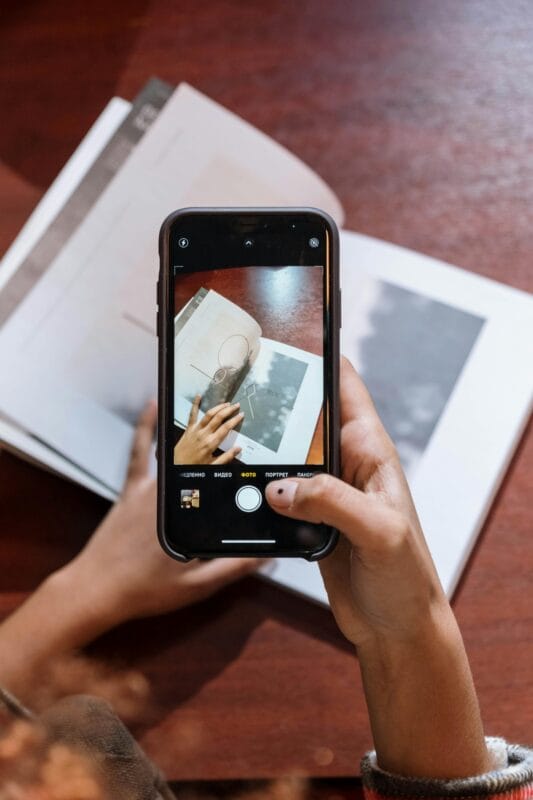
For the majority of contemporary smartphones (both iOS and Android), your standard camera app doubles as a QR code scanner. This is the quickest and most common method.
Step 1: Open Your Camera App. Launch the default ‘Camera’ application on your smartphone.
Step 2: Point at the QR Code. Position your phone so the QR code is clearly visible within the camera’s viewfinder. You don’t need to take a picture.
Step 3: Wait for the Notification. Your phone should automatically recognize the QR code. A notification banner or pop-up will appear, usually at the top of the screen, displaying the information or link embedded in the code. Tap on it to proceed.
Note: If it doesn’t work, ensure QR code scanning is enabled in your camera settings. For some older Android devices, you might need a dedicated app.
If your phone’s camera isn’t scanning properly, you can also use our web-based QR scanner directly in your mobile browser—just upload the image or use your camera through the browser.
Method 2: Utilize a Dedicated QR Code Scanner App
While built-in camera scanning is common, a dedicated QR code scanner app can offer additional features, historical logs, or better performance on older devices. Many free options are available on app stores.
Step 1: Download an App. Search for “QR code scanner” in your phone’s app store (App Store for iOS, Google Play Store for Android) and download a reputable, highly-rated app.
Step 2: Open the App. Launch the downloaded QR code scanner application.
Step 3: Grant Camera Permission. The app will likely request access to your camera. Grant the necessary permissions.
Step 4: Scan the Code. Use the app’s viewfinder to center the QR code. The app will automatically detect and process the code, presenting you with the embedded information or link.
Scanning QR Codes on Your Computer
Sometimes you encounter a QR code on a screen, printout, or even as an image file on your computer. Here’s how to scan them without a smartphone.
Method 3: Scan Physical QR Codes with a Webcam and Online Tool
If you have a physical QR code (e.g., on a brochure) and a webcam connected to your computer, you can use an online scanner tool.
Step 1: Open an Online QR Scanner. Go to a reliable online QR code scanner website (e.g., webqr.com or zxing.org/w/decode.jsp).
Step 2: Grant Webcam Access. The website will ask for permission to access your webcam. Allow it.
Step 3: Position the QR Code. Hold the physical QR code up to your webcam, ensuring it’s well-lit and in focus. The online tool will typically display your webcam’s feed.
Step 4: View the Results. Once recognized, the website will display the decoded information or direct you to the link.
The easiest way to scan QR codes on your computer is with our free QR code scanner tool. Just upload an image containing a QR code, and we’ll decode it instantly—no webcam needed.
Method 4: Scan QR Codes from Images on Your Computer
If the QR code is part of an image file on your computer (a screenshot, a downloaded picture, etc.), you can upload it to an online scanner.
Step 1: Save the Image. Ensure the QR code image is saved on your computer in a common format (PNG, JPG).
Step 2: Use Our QR Code Scanner Tool.
Visit our QR code scanner page, click to upload your image, and the tool will instantly decode the QR code and show you the embedded information.Step 3: Upload the Image. Look for an “Upload Image,” “Choose File,” or similar option on the website. Select the QR code image from your computer.
Step 4: Decode and View. The website will process the image and display the embedded data.
Our online QR scanner works with PNG, JPG, GIF, and even screenshots. It’s completely free and runs right in your browser—no software installation needed.
Advanced & Alternative Scanning Methods
Beyond the basics, there are other clever ways to access the information in a QR code.
Method 5: Using a Mobile Browser’s Built-in Scanner or Image Recognition
Some mobile web browsers and operating systems offer integrated scanning capabilities, especially useful for QR codes found directly on web pages or within images on your phone’s gallery.
Option A: Long-Press (Android/iOS). If you see a QR code image within a web page or your photo gallery, try long-pressing on it. Your phone or browser might offer an option like “Scan QR Code,” “Search image with Google Lens,” or “Open link” directly from the image.
Option B: Browser Camera Feature. Some browsers (like Chrome on Android or Firefox) might have a built-in camera search or QR scanner accessible through the address bar or a dedicated button, allowing you to scan physical codes.
Option C: Google Lens/Bixby Vision/Siri Visual Lookup. These AI-powered features, often integrated into your phone’s camera, gallery, or search bar, can analyze images (live or saved) and automatically detect and decode QR codes among other objects.
Troubleshooting Common Issues
If your QR code isn’t scanning, try these tips:
Good Lighting: Ensure the QR code is well-lit and not in shadow or too bright sunlight.
Focus: Make sure your camera or webcam is properly focused on the code.
Flat Surface: Scan codes that are on a flat, uncreased surface for better readability.
Clean Lens: A smudged camera lens can prevent accurate scanning. Give it a quick wipe.
Distance: Experiment with the distance between your device and the QR code. Too close or too far can be an issue.
Damage: Heavily damaged or partially obscured QR codes may be unreadable.
- Still not scanning? Try using our dedicated QR code scanner tool. Sometimes dedicated tools work better than built-in camera apps.
Conclusion
Scanning QR codes is a fundamental digital skill that opens up a world of information and convenience. Whether you prefer the simplicity of your phone’s camera, the added features of a dedicated app, or the versatility of online tools for computer-based scanning, there’s a method that fits your needs. With these five easy approaches, you’re now equipped to decode any QR code you encounter with confidence and ease!
Bookmark our free QR code scanner for quick access whenever you need to decode a QR code from an image. It’s fast, reliable, and always free.
Frequently Asked Questions About QR Code Scanning
Q: How do I scan a QR code with my phone's camera?
A: Most modern smartphones (iPhone and Android) have built-in QR scanning in the default camera app. Simply open your camera, point it at the QR code, and wait for a notification banner to appear. Tap it to open the link or content. If this doesn't work, you can use our online QR scanner by uploading the QR code image.
Q: Can I scan a QR code from an image on my computer?
A: Yes! Our free QR code scanner works directly in your browser. Simply upload a screenshot or image containing a QR code, and the tool will instantly decode it. No app installation required—it works on Windows, Mac, and Linux.
Q: Why won't my phone scan a QR code?
A: Common reasons include: poor lighting, smudged camera lens, the code is too small or far away, damaged/creased QR code, or your camera settings may have QR scanning disabled . Try our online scanner by taking a photo and uploading it—this often works when direct scanning fails.
Q: Is it safe to scan random QR codes?
A: Exercise caution. While most QR codes are harmless, malicious codes can lead to phishing sites or download malware . Before scanning, consider the source. Our scanner tool shows you the decoded URL before you visit it, allowing you to verify it's legitimate before opening.
Q: Can I scan a QR code from a screenshot on my phone?
A: Yes! On Android, Google Lens can analyze screenshots. On iPhone, you can save the screenshot, then use our online QR scanner to upload and decode it. This is perfect for QR codes you receive in messages, emails, or social media.
Q: What information can a QR code contain?
A: QR codes can store various data types: URLs, plain text, WiFi credentials (network name and password), contact information (vCard), email addresses, phone numbers, SMS messages, calendar events, and more . Our scanner detects and displays all these formats automatically.
Q: Do I need an app to scan QR codes?
A: Not anymore! Modern phones have built-in QR scanning in the camera app . For computers or when you need more features, our web-based QR scanner works instantly without downloading anything—just upload an image and get the decoded information.